Categories
We’re on a quest to make managing your PPC data less overwhelming. This technique can help you in both Google Ads and Microsoft Ads to find negative keywords and insights into your own data.
It’s already easy to manage ads and quality score, and to make bulk ad changes with Adalysis. We’ve just launched several new features to make analyzing your search terms and keywords much easier, too.
N-gram data
An n-gram primer
N-grams analyze the instances of a word or phrase across all search terms. To show a simplified example, let’s say you review your search terms and you have something that looks like this:
| Search terms | Clicks | Conversions |
| Plumbers | 100 | 10 |
| Plumbers in Los Angeles | 10 | 0 |
| Plumbers in Munich | 10 | 0 |
| Plumber Licensed | 50 | 5 |
| Licensed Plumbers in Chicago | 10 | 0 |
| Plumbers in Boston | 10 | 0 |
| Licensed Plumber | 25 | 4 |
| Plumbers in San Fran | 10 | 0 |
| Plumbers in Seattle | 10 | 0 |
Most people would assume:
- We need these keywords in the account:
- Plumbers
- Licensed plumber
- Plumber licensed
- We don’t have enough data to work with any of the other queries as the clicks are too low
Instead of looking at each search term individually, n-grams help you to look for patterns across your data.
N-gram analysis says you really have this:
| Query | Term Instance | Clicks | Conversions |
| Plumbers | 9 | 235 | 19 |
| Licensed | 3 | 85 | 9 |
| In | 6 | 60 | 0 |
Suddenly we have a very different picture of our data.
We can see that when the word ‘in’ appears across all these low volume queries, we don’t have any conversions. The word ‘in’ usually signifies a location search. Therefore, you could either try to localize your ads and landing pages, or add the word ‘in’ as a negative keyword.
While this is a simplistic example, when you have thousands (or millions) of search queries, it’s incredibly difficult to see patterns like these. This is why we’ve brought n-grams to Adalysis.
Reviewing your n-grams
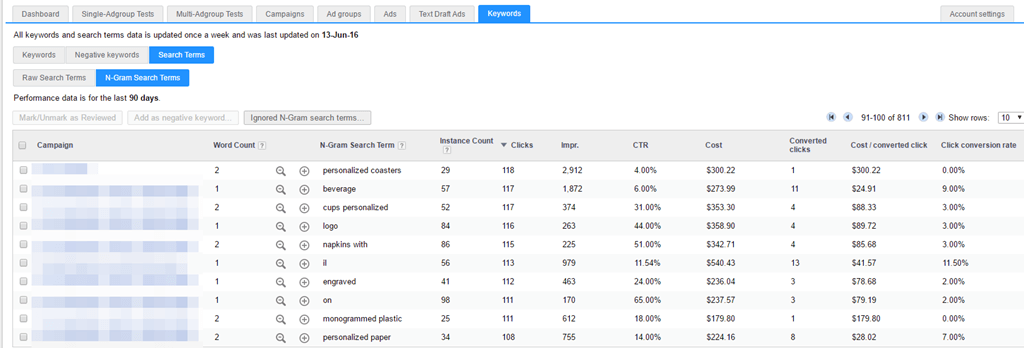
You can navigate to N-grams under Search terms.
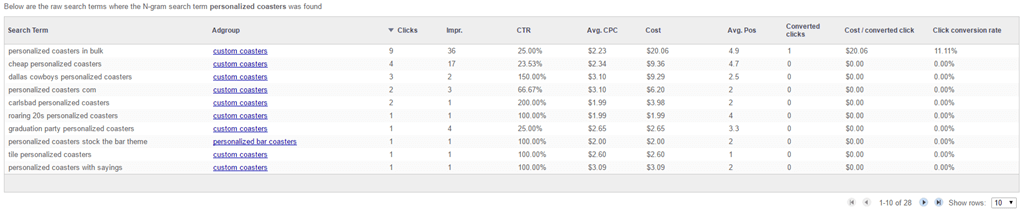
Clicking on the +icon will show you the actual search terms where the n-gram appeared. They can be sorted by any row.
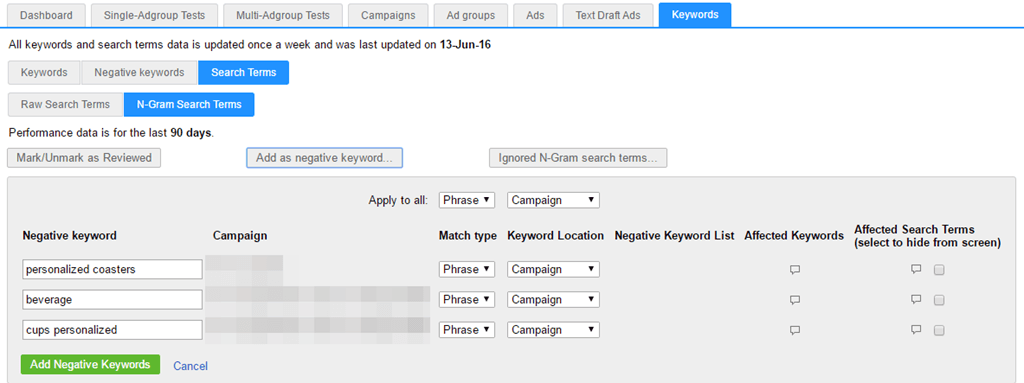
Adalysis calculates n-grams for one, two and three-word instances. To add n-grams as negatives, just select the words, and click ‘add as negative’. From here, you can easily change the match type and choose where to add the negatives.
As the computational power of this is immense, we only run this analysis once a week. However, that should be often enough to give you amazing insights into your data.
More tools for managing search terms and negatives
Last week, we launched several other tools to help you to manage search terms and add negative keywords:
Negative keyword conflicts
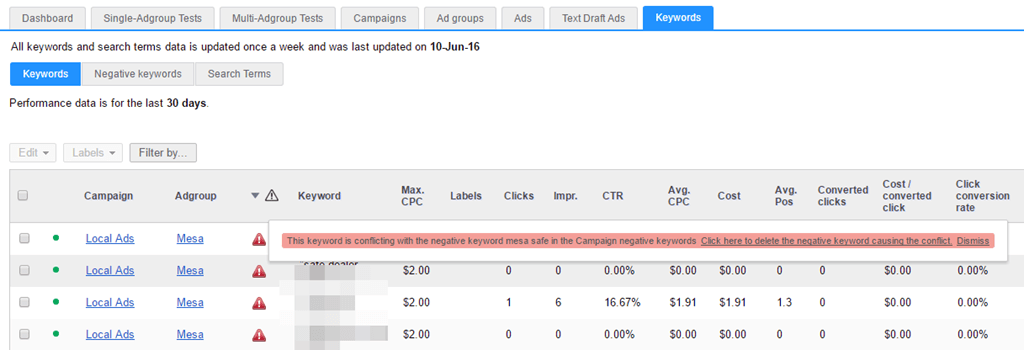
We’re often asked why a keyword isn’t showing or receiving impressions, only to find out there’s a buried negative keyword somewhere.
This report makes it easy to find negative keyword conflicts. You can click on the alert and just delete the negative right from the popup:
Easily clean up your negatives
Negative keywords can be difficult to manage as you might have ad group and campaign negatives or negative keyword lists that can stop ads from showing.
We’ve found that many users have the exact same negative keywords in every ad group within their campaigns. Instead of trying to manage negatives at the ad group level, we’ve provided an easy way to move all these negatives to the campaign level (assuming they are in every active ad group) with a single click:

See similar negatives to a search term
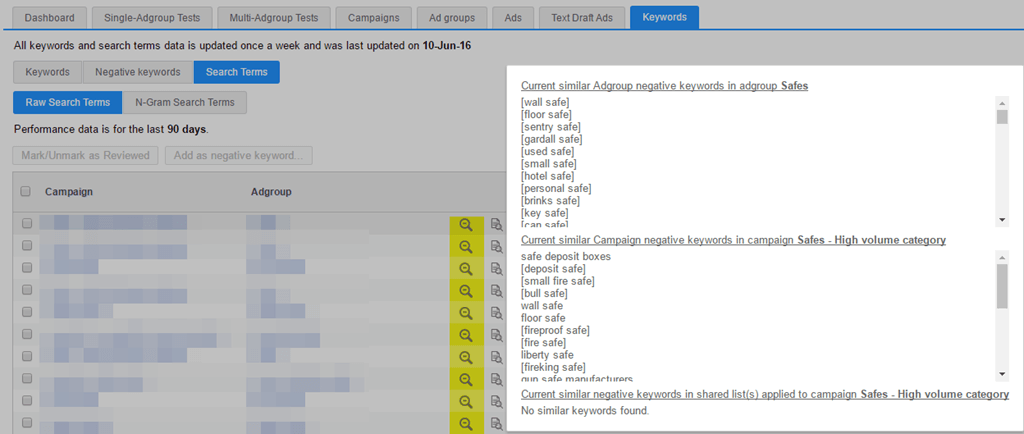
As you analyze search terms, you often want to know if you have similar negative keywords that might be blocking variations of a term or if you’ve blocked similar words in the past. In Adalysis, you can click on the search icon and see negative keywords (ad group, campaign, or campaign lists) that are similar to your search term.
See the keyword & ad pairings for search terms
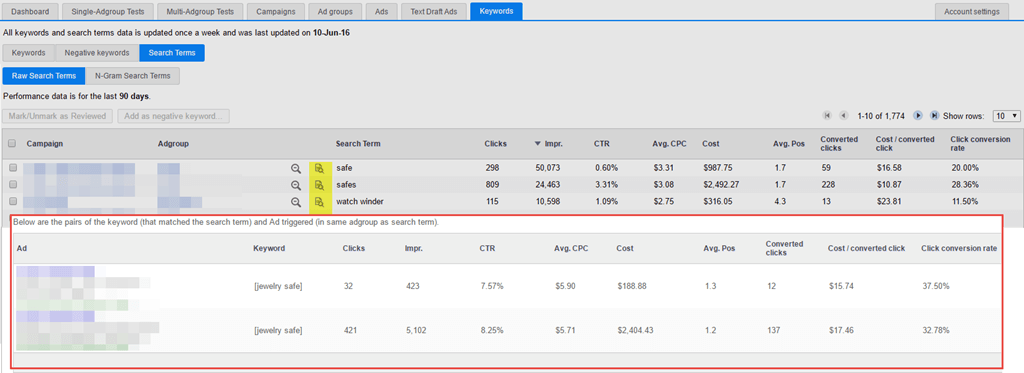
When you’re deciding if you want to make a search a negative, you often want to know the ad and keyword that triggered that search term. This helps you to see if the low performance is due to the search term itself, or the keyword, ad, and landing page.
If you click on the spotlight search icon, we’ll show you the ads and keyword that caused that search term to be displayed.
Easily add negative keywords
Lastly, adding many keywords at once can be fiddly.
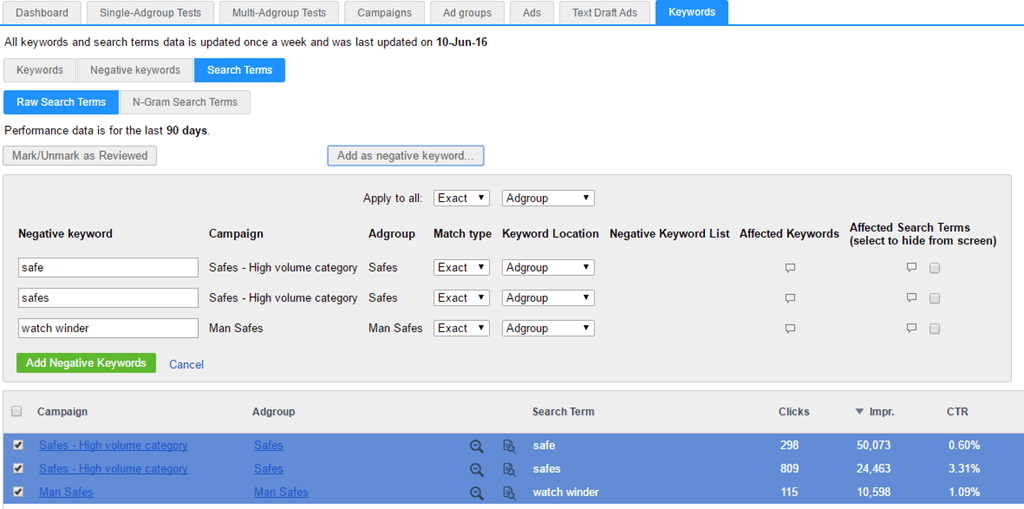
If you select the search terms you don’t want to show for anymore, you can easily add them in different match types to the ad group, campaign, or keyword negative list. This is an easy way to add lots of negatives at the appropriate level within your account.
Find out more about search term analysis with Adalysis. You can also try our PPC management software for free for 30 days.
Share around the web


Related posts
View all
When to pause exact match and rely on broadmatch instead
When to pause exact match and rely on broad match instead
The hidden challenges of AI Max searchterm reporting
The hidden challenges of AI Max search term reporting


Improve performance
with
actionable
analysis


Awesome stuff!
Leave a comment